
User guide
Holiday Trading Hours Notification
Adding the indicator to your chart
You can add the Holiday Trading Hours Notification indicator to your chart using either of the following methods:
- Right-click on the chart and select Indicators from the context menu.
- Click the Indicators icon on the chart title bar.
Saving the indicator as part of your default chart template
Holiday trading schedules vary by instrument. By saving this indicator as part of your default chart template, it will automatically load on every new chart you open, ensuring you are immediately notified whenever the instrument on that chart has an upcoming holiday with modified trading hours.
To save the indicator as part of your default chart template:
- Add the Holiday Trading Hours Notification indicator to a chart.
- Right-click on the chart and select Templates.
- Click Save Template.
- Name the template Default and confirm.
NinjaTrader will now automatically include this indicator on every new chart opened with the default template, ensuring you are never without holiday schedule awareness.
Tip: If you use different chart templates for different instruments or timeframes, repeat this process for each template you want to protect with holiday notifications.
How the indicator works
Once added to your chart, the Holiday Trading Hours Notification indicator runs silently in the background. No manual interaction is required during normal operation.
The indicator monitors all major exchange holidays that affect trading hours and automatically detects when an upcoming holiday will result in a schedule change. When a relevant holiday is detected within the next 7 days, an on-chart notification is displayed directly on your NinjaTrader chart. The notification includes:
- The name of the holiday.
- The date of the affected trading session.
- The modified market open and close times for that session.
This eliminates the need to consult external calendars or manually track exchange schedules. All information is presented right where you trade.
Snooze feature
If you have acknowledged the notification and do not wish to see it again until the following day, click the Click to snooze until tomorrow button displayed within the notification. The indicator will suppress the notification for 24 hours, after which it will reappear as a daily reminder until the holiday has passed.
This ensures that you receive consistent reminders without the notification becoming distracting during your trading session.
Performance recommendation
To minimize CPU usage, it is recommended to keep the Calculate setting, located under the Setup section of the indicator properties, set to On bar close. This is the default setting and ensures the indicator recalculates only when a new bar closes rather than on every tick.
Understanding the tool Properties
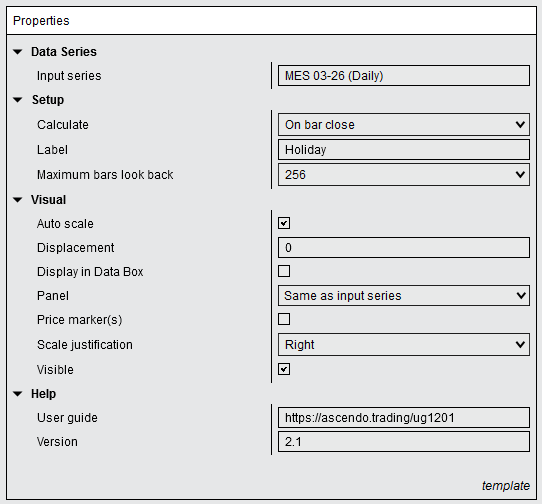
The screenshot below shows all available parameters for the Holiday Trading Hours Notification indicator. Refer to the following sections for detailed explanations of each parameter.
Setup
The following parameters are standard NinjaTrader indicator setup options.
Calculate
Controls when the indicator recalculates its values. Available options are:
- On bar close — The indicator recalculates once per bar, when the bar closes. This is the recommended setting as it minimizes CPU usage.
- On each tick — The indicator recalculates on every incoming tick. This increases CPU load and is generally not necessary for a session shading indicator.
- On price change — The indicator recalculates whenever the price changes.
Performance recommendation: Keep this setting at On bar close to minimize CPU usage.
Label
Sets the name displayed for this indicator instance on the chart and in the Indicators dialog. You can customize this label to distinguish between multiple instances of the indicator when shading several different time zones on the same chart.
Maximum bars look back
This parameter has no effect for this indicator.
Visual
Auto scale
This parameter has no effect for this indicator.
Displacement
This parameter has no effect for this indicator.
Display in Data Box
This parameter has no effect for this indicator.
Panel
This parameter has no effect for this indicator.
Price marker(s)
This parameter has no effect for this indicator.
Scale justification
This parameter has no effect for this indicator.
Visible
Controls whether the Holiday Trading Hours Notification indicator is displayed on the chart. Uncheck this parameter to hide the notification without removing the indicator, allowing you to temporarily remove it from view and restore it later.
Help
User guide
Displays the URL link to this user guide. Copy and paste the link into your web browser to access the complete documentation for detailed instructions and reference.
Version
Displays the version number of the Holiday Trading Hours Notification indicator. This is a read-only parameter that shows which version of the tool is currently installed.