
User guide
Pullback Ruler
Accessing the tool
Pullback Ruler is a drawing tool. Access it in one of the following ways:
From the Drawing Tools menu:
- Open the Drawing Tools menu.
- Select Pullback Ruler.
Quick access methods:
- Add the tool to the Drawing Tools Tile indicator for one-click access.
- Assign a hot key for instant activation via keyboard shortcut:
- Open the NinjaTrader Control Center.
- Go to Tools -> Hot keys.
- Assign your preferred key combination.
Understanding the tool Properties
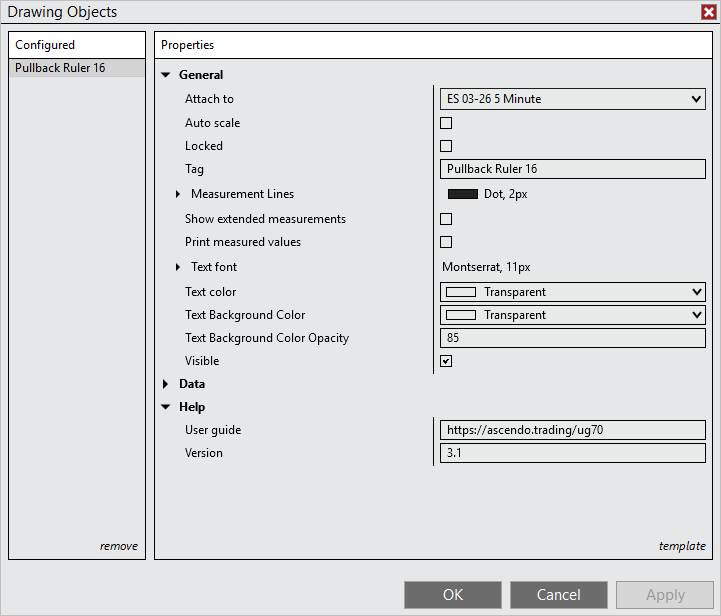
The screenshot below shows all available parameters for the Pullback Ruler drawing tool. Refer to the following sections for detailed explanations of each parameter.
General
Attach to
By default, Pullback Ruler drawings are attached only to the chart they were drawn on, making them visible only on that specific chart (local drawing object). This parameter allows you to change the Pullback Ruler to a global drawing object by selecting the instrument name followed by “(All charts)” from the dropdown menu.
Local: The Pullback Ruler is visible only on the specific chart where it was drawn. Local Pullback Ruler are lost when the chart is closed.
Global: The Pullback Ruler is visible on all charts of the same instrument, including any new charts opened for that instrument. Global Pullback Ruler are stored persistently—even if you close all charts of that instrument, the Pullback Ruler will reappear when you open a new chart for the same instrument.
Example: Changing “Attach to” from “MES 03-26 5 Minute” to “MES 03-26 (All charts)” makes the Pullback Ruler visible on all MES 03-26 charts, regardless of the time frame.
Note: Additionally, a Pullback Ruler can be attached to an indicator so that it will be associated with the indicator and its scale.
Auto scale
When enabled, the Pullback Ruler is included to the auto-scaling of the chart so the vertical axis of the chart will be adjusted such that the Pullback Ruler drawing will always be visible.
Locked
Enable this parameter to automatically lock Pullback Ruler after drawing them, preventing accidental repositioning when scrolling your chart. To apply this parameter to all new Pullback Rulers, save it as your Default Template (Template > Save > Save as Default). You can also lock/unlock a drawing by left clicking the drawing to select it, then right clicking the drawing to view the right click menu, then selecting Lock.
Tag
A custom identifier that can be assigned to the Pullback Ruler for organizational purposes or for use with automated trading strategies.
Measurement lines
Configures the measurement lines that mark the beginning and end points of the Pullback Ruler measurement. You can set the line color, dash style, and width. Click the expand arrow to access detailed line settings.
Show extended measurements
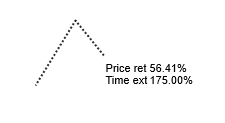
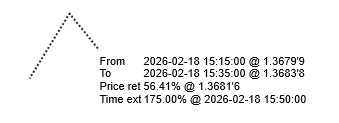
When enabled, displays additional measurement information.
Compact measurements
Extended measurements
Print measured values
When active, the measured values will be printed to the NinjaScript Output window in a CSV format to make it easy to copy and paste into a spreadsheet application. Five values are printed in this order: From anchor time, To anchor time, Pullback anchor time, Measured pullback percentage, Measured time extension percentage.
This feature is useful for tracking and analyzing multiple pullback measurements over time or for creating historical records of price retracements.
Text font
Configures the font family, size, and style options (bold, italic) for the measurement text displayed by the Pullback Ruler. Click the expand arrow to access detailed font settings.
Text color
Defines the color of the measurement text displayed by the Pullback Ruler. This allows you to customize the text appearance to match your chart color scheme or personal preferences.
When set to Transparent, the chart’s text color is automatically used as the text color.
Text background color
Defines the background color displayed behind the measurement text. This creates a filled box behind the text to improve readability against busy chart backgrounds.
When set to Transparent, the chart’s background color is automatically used as the text background color. To achieve a truly transparent background instead, leave this parameter set to Transparent and set Text background color opacity to 0%.
Text background color opacity
Controls the transparency level of the text background color. Values range from 0 (fully transparent) to 100 (fully opaque). Lower values allow chart bars and indicators to show through the text background.
Visible
Controls whether the Pullback Ruler drawing is displayed on the chart. Unchecking this parameter hides the Pullback Ruler without deleting it, allowing you to temporarily remove it from the chart view and restore it later.
Help
User guide
Displays the URL link to this user guide. Copy and paste the link into your web browser to access the complete user guide and get the most out of this tool — including how to use it effectively and how to configure each available parameter.
Version
Displays the version number of the Pullback Ruler drawing tool. This is a read-only parameter that shows which version of the tool is currently installed.