
Installation guide
How to install the ASCENDO License Manager
The ASCENDO License Manager validates your product licenses and must be installed before using any ASCENDO products.
Note: If you’ve already installed the License Manager, you can skip this section and go directly to How to install your ASCENDO products.
Before you begin: We recommend backing up your NinjaTrader 8 configuration before installing any new software. This ensures you can restore your setup if anything goes wrong. See our guide: Backing up NinjaTrader 8.
Step 1: Download the License Manager
- Sign in to your customer area
- Navigate to My account → My downloads
- Download the ASCENDO License Manager file
- Note the location where you saved the file
Step 2: Import the License Manager
- Open the NinjaTrader Control Center window
- Select Tools → Import → NinjaScript Add-On…
- In the Import File Explorer window, navigate to where you saved the zip file
- Select ASCENDO License Manager.zip and click Open
Step 3: Confirm installation prompts
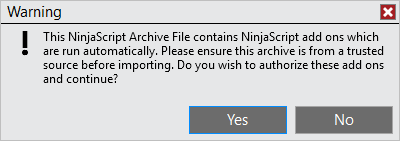
You will see two security confirmation windows:
First prompt: Confirms that this NinjaScript assembly will run automatically when you start NinjaTrader.
- Click Yes to continue
Second prompt: Reminds you to only install add-ons from trusted sources.

- Click Yes to continue
Step 4: Confirm successful installation
A window will appear prompting you to restart NinjaTrader to complete the installation, this confirms the import was successful.

- Click OK
- Restart NinjaTrader to complete the installation
Step 5: Enter your license credentials
After restarting NinjaTrader, the License Manager window should open automatically.
If it doesn’t, go to Help → ASCENDO License Manager from the Control Center window.

- Retrieve your license credentials from My account → My downloads in your customer area
- Enter your credentials in the License Manager window
- Click OK
Step 6: Verify installation
To confirm your license is properly validated:
- Open the NinjaTrader Control Center window
- Click the Log tab
- Look for entries beginning with “ASCENDO License Manager:” that confirm successful validation
Successful installation complete! You can now install and use your ASCENDO products.
Troubleshooting
License Manager window doesn’t appear after restart:
- Manually open it via Help → ASCENDO License Manager
License validation fails:
- Verify your credentials match exactly what’s shown in your customer area
- Check your internet connection
- Contact support if issues persist